
Notes, for the whole team
Write down what your team knows. Every Quox agent can read it.
NotesQ is where your team writes down what it knows, and every Quox agent can read it. It is the notebook layer of Brain2, Quox's knowledge layer, and part of the AssistantQ bundle. Notes are plain Markdown, personal or shared with your org, with full revision history.
In plain words
What it is, where it lives, when to reach for it
- What is it
- A notebook for your team, stored as plain Markdown, that every Quox agent can read.
- Where do I use it
- In the Notes tab of your Quox dashboard, and from the command line with quox notes.
- When would I use it
- When what your team knows lives in heads and scattered documents, and you want it written down once.
- How do I use it
- Write a note, link it to others with double brackets, and keep it personal or share it with your org.
The problem
Your team knows a lot. Almost none of it is written down where agents can read it.
Knowledge sits in heads, chat threads and files nobody can find. When you do write it down, it is trapped in one app, edited over by accident, and invisible to the agents you want to answer from it.
NotesQ keeps it in plain Markdown, protects every edit, and indexes it for Quox agents.
What the team knows lives in heads and scattered documents
Notes your whole org can write, link and find, in one place
Notes locked in an app you cannot take with you
Plain Markdown, so a note stays portable
Two people save the same note and one edit silently vanishes
Edit conflicts are caught, never silently overwritten
A deleted note is gone and nobody knows who did it
Full revision history, restorable even after a delete, with each change recorded as evidence
Your agents cannot see what your team wrote down
Notes are indexed by Brain2, so Quox agents can find them when answering
What it does · shipped, Beta
Six things NotesQ does, one shared notebook.
Markdown = a plain-text format for headings, lists and links that any editor can open. Brain2 = Quox’s knowledge layer, where agents search what your org knows. Evidence = Quox’s audit trail of who did what.
Write in a real editor, keep plain Markdown.
The editor is rendered by default: bold, italic, strikethrough, headings, bullet and numbered lists, checklists, quotes, code and links, with a toolbar and keyboard shortcuts. Switch to raw Markdown or a clean Read view whenever you like. Underneath, a note is plain Markdown, so it stays portable.
Link notes together and see what links back.
Type [[double brackets]] to link one note to another, with an autocomplete as you go. Each note shows its backlinks, so you can see what links here. Search covers your notes, and Related notes suggests others on the same topic.
Organise it your way.
Collections, tags, pinned and archived notes, plus custom properties such as type and status. Focus mode and collapsible panes keep the page quiet while you write.
Keep personal notes personal, share the rest with your team.
Personal notes and team (org) notes are separate. A colleague cannot see your personal notes, and another org can never see yours. Any org member can edit team notes; only the author or an admin can delete one.
Never lose a version, never overwrite a colleague.
Every note has a full revision history, and you can restore any earlier version, even after a delete. Edit-conflict protection means two people, or a person and an agent, editing the same note never silently overwrite each other. Every create, edit, restore and delete is recorded as evidence in Quox’s audit trail, without copying the note’s content into the log.
Let your agents read what you wrote.
Notes are indexed by Brain2, Quox’s knowledge layer, so Quox agents can find them when answering. You can open a note in the Brain2 knowledge graph (this needs the Brain2 graph plugin).
Command line · shipped
Read and write notes from your terminal.
The verbs are quox notes ls | show | new | edit | search | facets | history | restore | rm | related.
$ quox notes ls --scope org
 ID          Title                               Scope  Collection   Tags
 47947fe7…   Q4 launch plan                      org    Projects     launch,planning
 60afe344…   Supplier review: Northwind Hosting  org    Suppliers    hosting,review
 333c57ef…   SOP: onboarding a new client        org    SOPs         onboarding
  🌌 BRAIN2 │ notes ls │ 5 of 5
The product, not a mockup
Real captures, from the running dashboard
NotesQ is shipped and running in Beta. These are captures from the live dev instance, annotated.
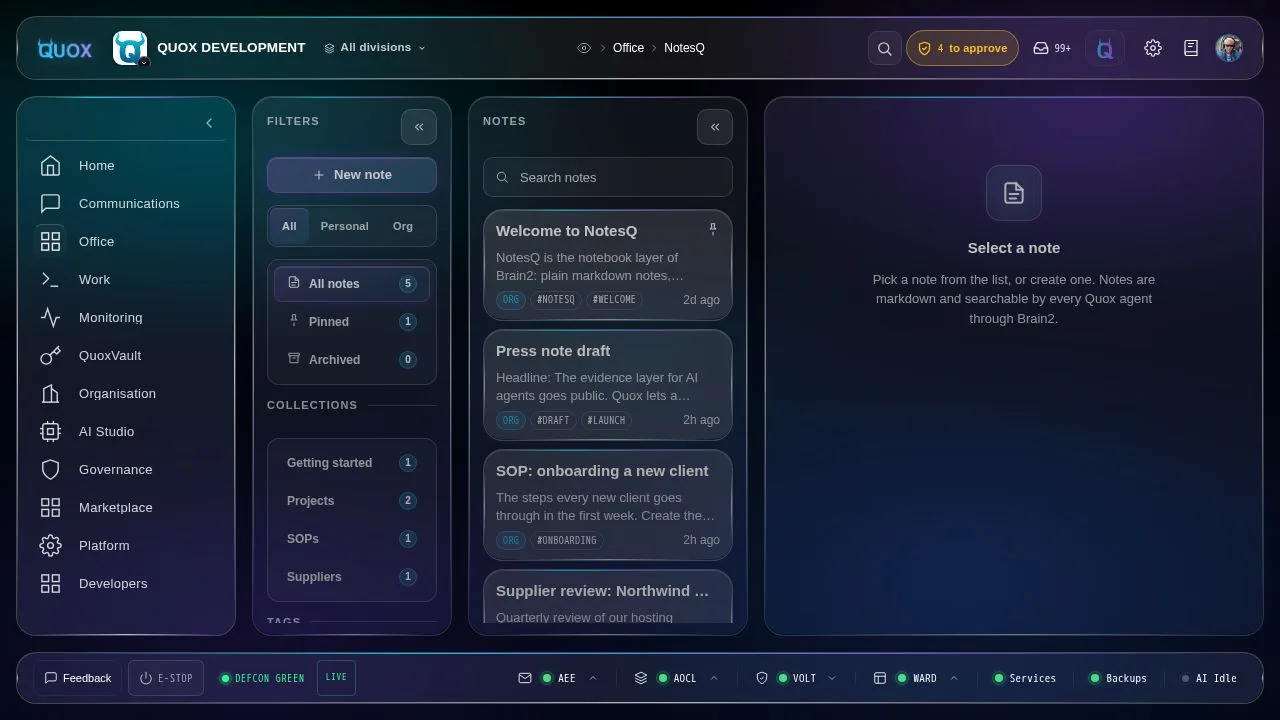

- 1Rich, Markdown or ReadWrite in formatted text by default, switch to raw Markdown or a clean reading view any time.
- 2AutosaveAutosave with a live status, and edit-conflict protection behind it.
- 3Formatting toolbarBold, italic, headings, lists, checklists, quotes, code, links, note links and attachments.
- 4ChecklistsChecklists you can tick off in place.
- 5Note links[[Note links]] connect notes into a knowledge graph.
- 6More roomHide the notes list, open Details, or go to Focus mode for more room.
Captured from the real NotesQ page, not a mockup.
Honest limits · today
What NotesQ does not do yet.
NotesQ is Beta. These are the limits you will hit today.
No real-time co-editing
Edit conflicts are detected, not merged live. If two people edit at once you are warned, and one edit never silently overwrites the other.
Tables and raw HTML open in Markdown mode
They are not shown in the rendered editor yet.
Deleted notes keep their history
There is no permanent purge yet.
Attachments are early access
Up to 25 MB per file, stored per organisation. Paste a screenshot, drag and drop files, or use the attach button; images show inline and other files as downloads.
Related notes improves with indexing
A brand-new note gets better suggestions once Brain2 has indexed it.
Pricing
Part of the AssistantQ bundle.
Included in the AssistantQ bundle. Pricing announced at launch.
What is planned · kept honest
Shipped and planned, kept separate.
Everything above is shipped. Nothing below is built yet, and each row is tagged that way, in roadmap order.
PLANNED: NEXTA Notes-Q assistant in the sidebar
Talk to your notes: "summarise this", "tidy these notes", "link related notes". Agent edits arrive as a diff you approve. Also next: voice capture ("note this under Ideas") through Quox voice, and MCP tools so external agents can read and write notes.
PLANNED: THENWired into the rest of AssistantQ
Meeting notes created from Calendar-Q events, an email thread saved from InboxQ, actions extracted into Action-Q, a note promoted to a plan, and a "+ Note" button across Quox.
PLANNED: LATERSmarter organising and import and export
Suggested links and duplicate or stale-note detection; search inside attachments; table, card and timeline views from properties; Obsidian vault export and import; Notion import.
NotesQ
Write down what your team knows.
Plain Markdown, personal or shared, readable by every Quox agent. Beta.